


Dot Crosshair in CS2: How to Set It Up
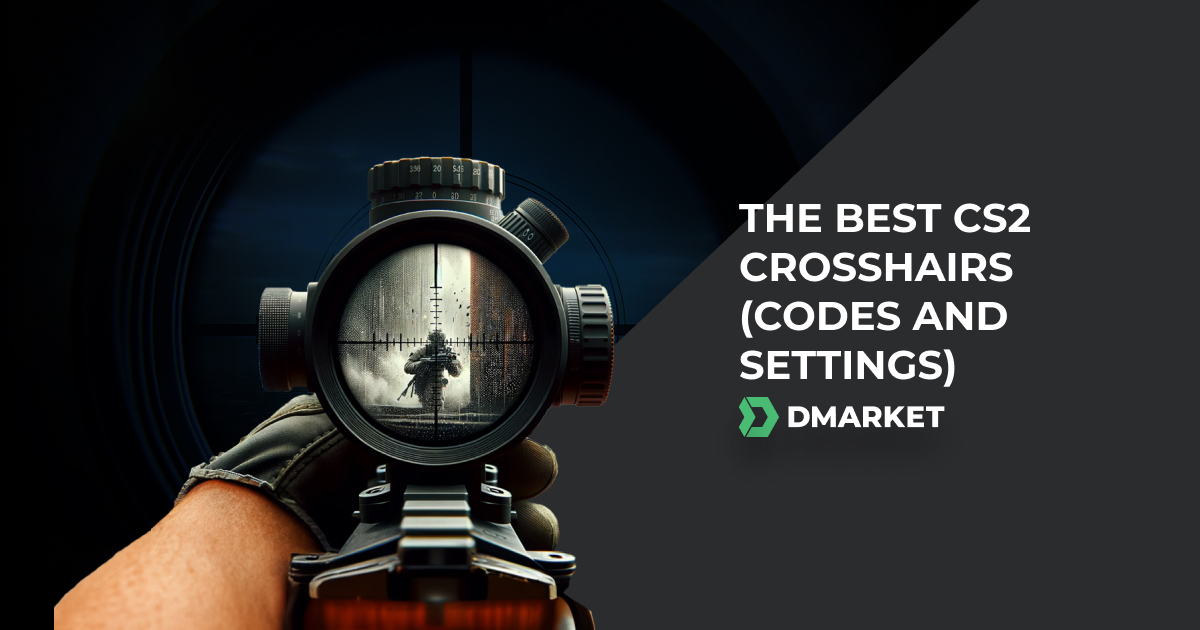
A perfect crosshair in Counter-Strike 2 is based on the balance between nice visibility and zero distraction from the action. You certainly need to see where your virtual gun is going to shoot. However, those few pixels on the screen should not take too much of your attention. Many players find a dot crosshair in CS2 the best option. Are you one of them?
It is important to understand that no crosshair is universally perfect. We are all different, and even if a top esports professional plays with a dot crosshair, this doesn’t mean it is suitable for your personal style. Only practice can reveal if it is so!
Follow the steps from our guide and play Counter-Strike 2 with your new dot crosshair for a while. Do you feel the improvement? Keep it or make some changes: it’s all up to you!
What Is a Dot Crosshair in CS2?
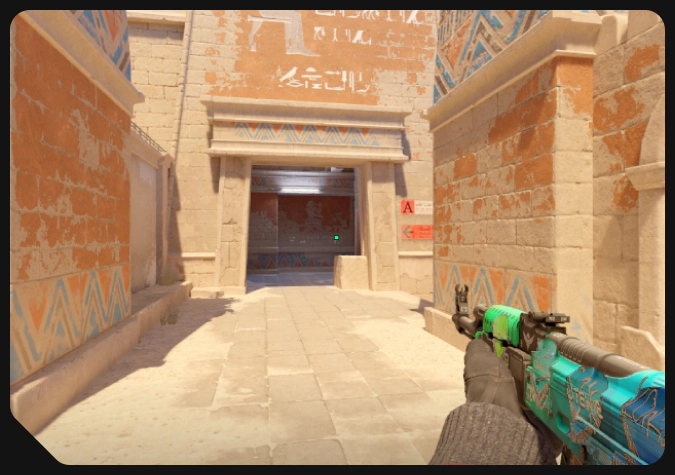
When the surrounding lines are removed and only the central dot remains, it is called a dot crosshair. This is literally a dot that shows where your gun shoots.
A dot crosshair is a result of special customization, as there is no magic button in the game to set it up in one click. Counter-Strike players are pretty creative when it comes to changing the virtual environment for the best in-game results. Many aspects can be adjusted for this ultimate goal, including technical, such as the interp settings in CS2.
The main purpose of having a dot crosshair is to improve your aim. Less distraction means you clearly see where the bullets fly.
Why Use a Dot Crosshair?
The default options in the game include three styles of CS2 crosshairs. All of them come with surrounding lines—and basically, the crosshair consists of these four lines.
- The Classic crosshair style means the lines become wider during movement.
- Classic Static doesn’t change the internal gap.
- The Legacy style expands the gap only during shooting.
Many players find all these styles pretty distracting, especially when the lines move. During fast-paced Counter-Strike matches, they prefer a pure understanding of where the crosshair aims at every given moment.
A dot crosshair is a good solution for this. It intensifies the stability effect from the Classic Static style, and steps even beyond that.
Advantages
- Fewer distractions—However small the lines are, some players find them distracting from the game objects and character models of other players. When they hunt for victims from a tricky behind-the-corner angle, even this distraction becomes notable.
- Clear understanding of where you aim at—The gap inside the crosshair lines can keep you guessing about the exact aiming dot. Obviously, having that dot visible is quite convenient.
- Full immersion—The best results in Counter-Strike come when you are fully focused on the game. It’s not like you are sitting out there, playing. You are immersing yourself in the virtual world to be in the whirl of action. If having a CS2 dot crosshair can help you with this, just do it!
Disadvantages
- Visibility—In some situations, you may have difficulties seeing a dot crosshair in CS2. It often happens during dynamic movement, and Counter-Strike rounds are full of this.
- Spread and recoil control—When the crosshair lines move and make the gap inside wider, it’s not a fancy visual effect at all. It’s a way to show the spread of bullets during your movement (Classic style) and shooting (Legacy style). This feature also refers to the recoil accuracy. You need a good experience to feel these aspects with just a dot as your crosshair in Counter-Strike 2.
How to Set Up a Dot Crosshair
In this section, you’ll find step-by-step guides on how to get a dot crosshair in CS2. Choose the method you find most convenient and simple.
Dot Crosshair in CS2 Settings
Counter-Strike 2 has many options in the standard settings menu. All sorts of adjustments are just a few clicks away, including a Dot Crosshair.
- Launch the game and head to the settings menu via the gear icon in the top left corner.
- Open the Game tab and click Crosshair in the upper menu.
- Select Classic Static for the crosshair style.
- Choose Yes for Center Dot.
- Adjust the length to 0.0, thickness to 1.5, and gap to -3.0. The Length parameter removes the crosshair lines. Thickness corresponds to the size of your dot crosshair. Gap affects the position of outline if you choose to have one.
- Remove outline to have a clear dot or keep it to have the crosshair more visible.
- Set your preferred color. The default is green: red 0, green 255, blue 0.
- Mark the Alpha option on and set it to 200. It’s a crosshair transparency parameter.
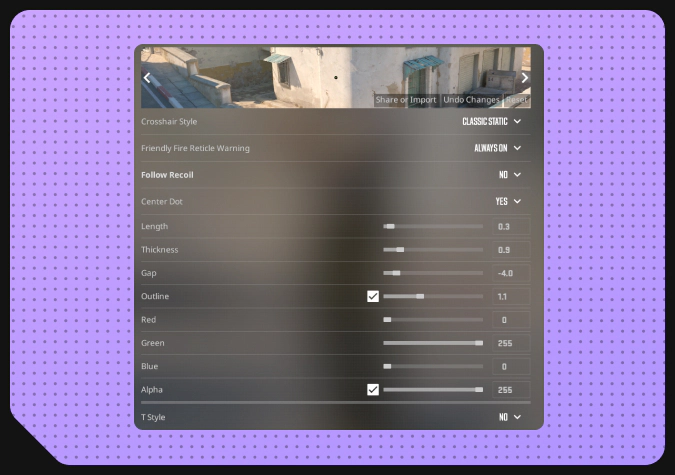
All the changes you make in these settings are immediately reflected in a special image inside the crosshair section. Experiment with the parameters. Then feel your dot crosshair in the actual CS2 matches to understand what could be changed.
In general, the CS2 settings are worth your attention as you can find many interesting options here. For example, mute people to not get distracted by their meaningless comments.
CS2 Dot Crosshair Codes
The image in the game settings that shows how your crosshair looks has three important buttons. With them, you can undo recent changes or even reset the crosshair to the default version.
Also, the image has the Share of Import button. Click it to copy your personal crosshair settings and share them with anyone. Or use this option to add a CS2 dot crosshair code of another player—for example, a popular professional.
Here is a code for a dot crosshair from our previous section:
CSGO-brCVC-5BifB-JO25R-WXbmp-BkKPJ
Dot Crosshair via CS2 Console Commands
If you prefer a deeper dive into the CS2 settings, check out how to get a dot crosshair in CS2 via console commands.
Copy the commands here and then add them to the developer console: enable it in the settings menu and then press the tilde button ~ to activate the console.
cl_crosshairstyle 4; cl_crosshairdot 1; cl_crosshairthickness 1.5; cl_crosshairgap -3.0; cl_crosshairsize 0; cl_crosshaircolor 1; cl_crosshairusealpha 1; cl_crosshairalpha 200; cl_crosshair_drawoutline 0; cl_crosshair_outlinethickness 0
Check out our dedicated guide for detailed information about these and other crosshair commands.
Adjusting Dot Crosshair
You have a few options to adjust the look of your CS2 dot crosshair. Let’s highlight all of them.
- Outline—You can have an outline for a dot crosshair to improve visibility. This option is present in the game menu: mark it on and set the outline thickness. The console commands are cl_crosshair_drawoutline [0/1]; cl_crosshair_outlinethickness [number].
- Color—Green is the default crosshair color in CS2. If you prefer another one, change the color in the game menu. Only your personal opinion matters here. Using the red-green-blue values can enable any color for you, so feel free to experiment.
- Length—For the classic dot crosshair, it should be 0. However, you may prefer having small lines around the dot.
- Thickness—This option directly affects the size of your dot. Make it visible!
- Gap—This parameter matters only if you choose to have an outline. Make it smaller for a smaller crosshair in general.
- Alpha—Transparency is a good option when you set a high thickness value but don’t want it to distract you. For small CS2 dot crosshairs, Alpha could be just turned off.
Extra Tips & Customization
Team roles that focus on long-distance shots, like snipers, benefit from a dot crosshair more. If you are more of an entry fragger, the standard lines may be better for you.
After you’ve played a bit with a dot crosshair, open the game settings and experiment with some adjustments. The dot thickness, color, and outline are the main customization options to play around with.
Gain some good experience in the game to feel the difference between spray patterns, improve your aim in special modes, and learn CS2 maps to boost your team strategy. Having a dot crosshair is not a universal success recipe.
Best Dot Crosshair Settings
Let’s summarize the best settings for a dot crosshair in CS2.
- Classic Static—This crosshair style is generally preferred by many experienced players. You clearly see where you aim.
- Center Dot enabled with Yes—Sure, it’s the main option. The dot should be there.
- Length: 0.0—You totally remove the crosshair lines.
- Thickness: 1.5—The dot is not too small and not too big. Feel free to experiment with this value.
- Gap: -3.0—This parameter matters only with outline enabled.
- Outline Disabled—If you want a clear dot.
- Color: Green—It’s the most universal option.
- Alpha enabled, 200—The dot crosshair is slightly transparent, and this feels good for the eyes.
Your personal best settings can be different, as they should reflect your playing style. After setting up your dot crosshair, you may want to return to these settings once in a while: as you gain even more experience in the game, your preferences can change.
CS2 also changes! Sometimes the developers release more skins, like with the Spring Forward update. And they also make deep gameplay adjustments. Such situations may become your call to check the dot crosshair customization: for example, to make sure it works properly on a new map.
Conclusion
A dot crosshair in CS2 may help you focus on the in-game action with less distraction from the crosshair lines. It’s a good way to see where you aim clearly.
On the other hand, you need some experience with the game weapons to feel the spread of bullets and the gun recoil. Usually, the crosshair lines of the Classic style hint at the lower accuracy during movement and quick shooting.
Trade on the go - install the mobile app of DMarket from Google Play or App Store. Never miss great prices and unique skins. The best CS2, Dota 2, Rust and TF2 marketplace is always at hand!


For everything interesting and important about the game and CS2 skins trading, stay tuned to DMarket Blog and follow us on Facebook and Twitter!