

Shroud’s Settings in CS2: From Crosshair Settings to Hardware
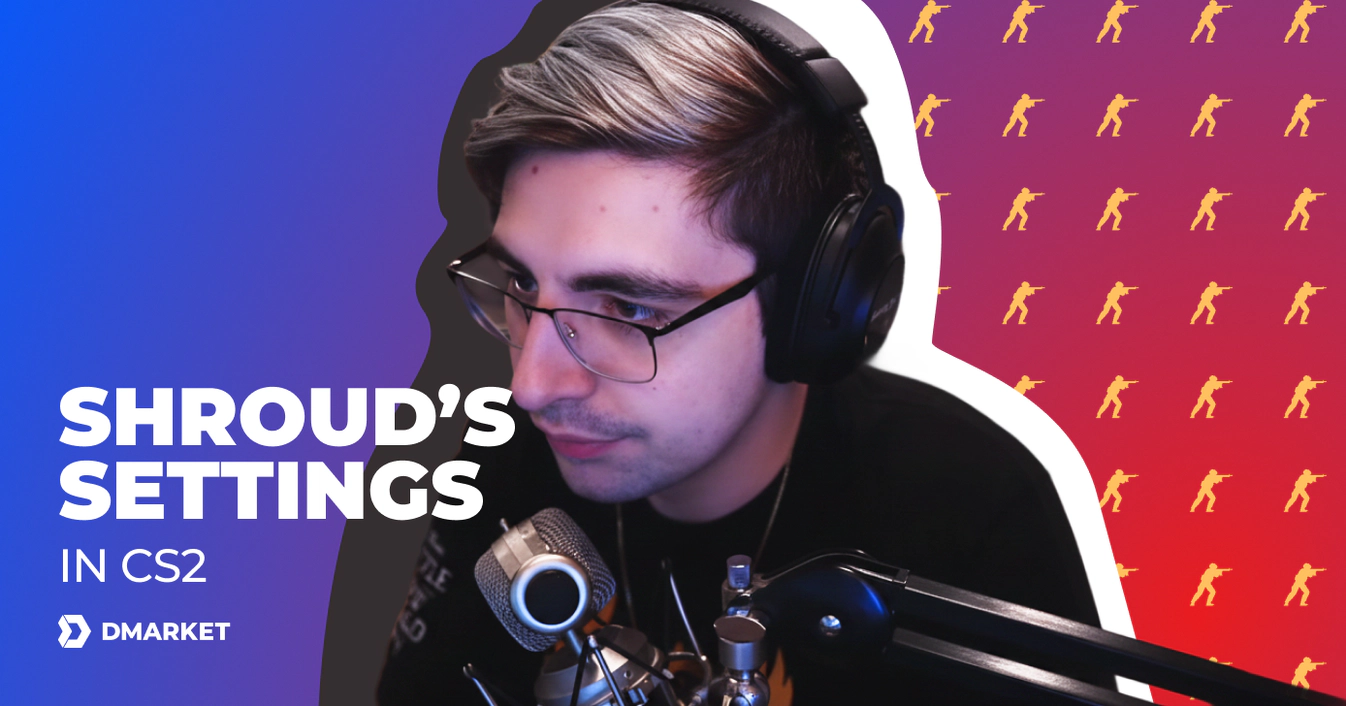
Michael “shroud” Grzesiek is a seasoned competitive player. His professional background includes years of CS:GO experience. Shroud is also known for his presence in Valorant esports.
After some time in the roster of Cloud9, shroud decided to focus on his career as a streamer. That became a successful path, as shroud’s channels have millions of subscribers.
CS2 is among the games shroud actively streams, and his settings reflect the intention of creating a visually appealing image while remaining competitive.
Most Important Shroud’s Settings in CS2
The guy played Counter-Strike professionally back in the CS:GO era. As the game has changed, shroud has followed modern trends in all aspects of CS2 settings.
Mouse Settings
As one of the main tools for CS2, a popular player’s gaming mouse attracts a lot of attention.
Sensitivity is a key factor in CS2 mouse settings. Shroud keeps it on a relatively high level—still, not as high as in s1mple’s settings.
- Mouse: Logitech G Pro X2 SUPERSTRIKE
- DPI: 800
- Sensitivity: 1.25
- eDPI: 1000
- Zoom Sensitivity: 1
- Hz: 1000
- Windows Sensitivity: 6
Video Settings: Performance and Visibility
This section of CS2 settings distinguishes shroud from most esports professionals. It’s pretty logical for a streamer to strive for the best image quality. He has a high resolution in the basic video settings.
- Resolution: 2560x1440
- Aspect Ratio: 16:9
- Scaling Mode: Native
- Brightness: 93%
- Display Mode: Fullscreen
In the advanced CS2 video settings, shroud has also selected improved quality for various aspects, such as textures, shaders, and particles.
- Boost Player Contrast: Enabled
- V-Sync: Disabled
- Maximum FPS In Game: 0
- Multisampling Anti-Aliasing Mode: 4x MSAA
- Global Shadow Quality: High
- Dynamic Shadows: All
- Mode/Texture Detail: High
- Texture Filtering Mode: Anisotropic 4x
- Shader Detail: High
- Particle Detail: High
- Ambient Occlusion: Medium
- High Dynamic Range: Quality
- FidelityFX Super Resolution: Disabled (Highest Quality)
- NVIDIA Reflex Low Latency: Disabled
- NVIDIA G-Sync: Disabled
Crosshair Settings and Code
Shroud’s CS2 crosshair settings are quite unusual. We can see small crosshairs in the settings of many pro players, such as ropz, but shroud goes for pretty long and thick lines.
- Shroud’s crosshair code: CSGO-oWwnn-Keks9-w8fEW-LnBEY-pYOAK
- Style: Classic Static
- Follow Recoil: No
- Dot: No
- Length: 5
- Thickness: 1.5
- Gap: -2
- Outline: No
- Color: Green
- Red: 255
- Green: 255
- Blue: 255
- Alpha: Yes
- Alpha Value: 255
- T-Style: No
- Deployed Weapon Gap: No
- Sniper Width: 0
Viewmodel Settings
As for the viewmodel settings, shroud plays CS2 with a pretty standard setup. This position of the character model is versatile for different playstyles and team roles in Counter-Strike 2.
- FOV: 68
- Offset X: 2.5
- Offset Y: 1
- Offset Z: -1.5
- Presetpos: 2
HUD Preferences
The size of CS2 HUD elements is close to the default in shroud’s settings. The player prefers the white color—perhaps for high contrast, which may be important for stream viewers.
- HUD Scale: 0.95
- HUD Color: White
Radar Settings
It’s pretty easy to note two unusual options in shroud’s radar settings: it doesn’t center the player, and the map zoom is strongly decreased.
- Radar Centers The Player: No
- Radar Is Rotating: Yes
- Radar HUD Size: No
- Radar Map Zoom: 0.5
- Toggle Shape With Scoreboard: 1.005
Equipment Setup
As a streamer, shroud uses top-level gaming equipment. Apart from the monitor, he prefers Logitech over other popular brands.
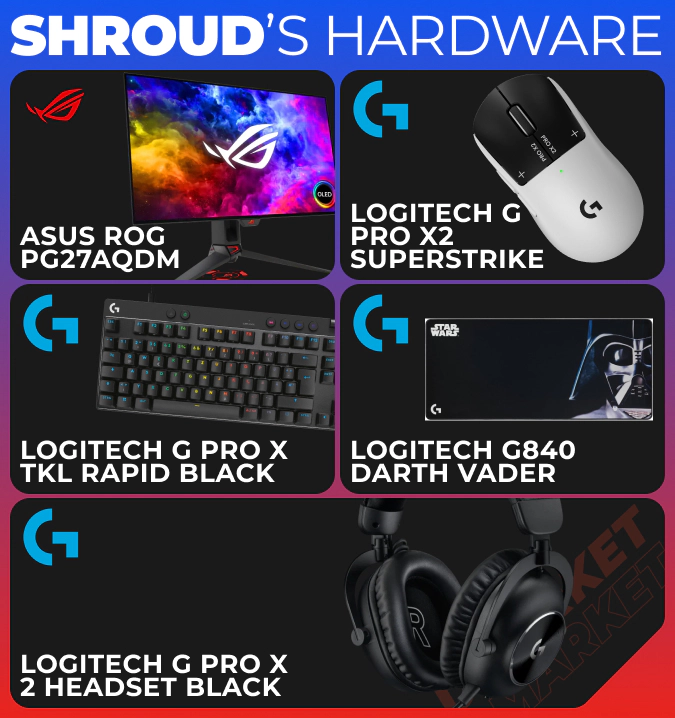
- Monitor: ASUS ROG PG27AQDM
- Mouse: Logitech G Pro X2 SUPERSTRIKE
- Keyboard: Logitech G Pro X TKL RAPID Black
- Mousepad: Logitech G840 Darth Vader
- Headset: Logitech G PRO X 2 Headset Black
How to Apply Shroud’s Settings in CS2
All options in shroud’s CS2 settings are available in the standard game menu. Access it via the gear icon in the top left corner and then scroll through the available options.
Counter-Strike 2 divides the available settings into logical categories, and our guide follows this structure. Add values manually, copy and paste the crosshair code, check if you want to adjust something immediately, and then save the changes.
It is a good idea to come back to your settings after a few playing sessions. You can fine-tune them to personalize your experience.
Shroud’s Settings Compared to Other Pro Players
In terms of gameplay, the CS2 settings of shroud are pretty universal. They can perfectly suit beginners and casual players. Using this environment may help you be effective with different weapons and potentially find your preferred style in the game.
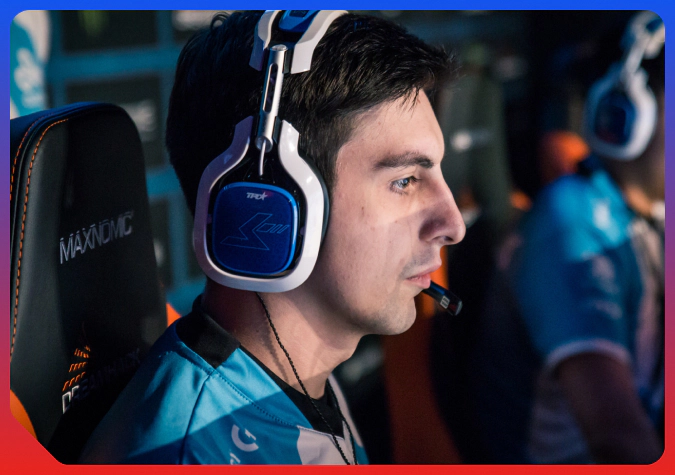
At the same time, shroud has optimized his settings for high-end hardware, which is essential for his streaming career. Specifically, in the video settings, you may want to go for lower values and quality levels to match the performance of your setup.
Shroud is known for his excellent skills in first-person shooters, including Counter-Strike. Use CS2 settings from our article to recreate his preferred playing environment, but never forget that shroud is as unique a person as you are. After some time, add your personal touch to the available game options and then polish your mastery with regular practice.
Trade on the go - install the mobile app of DMarket from Google Play or App Store. Never miss great prices and unique skins. The best CS2, Dota 2, Rust and TF2 marketplace is always at hand!