


The Best Viewmodel Settings in CS2
For your perfect convenience in the game and the best results, you should use optimized CS2 viewmodel settings. Sure, the exact position of the weapon and the character’s hands on the screen depends on your playing style and preferences.
The viewmodel settings in Counter-Strike 2 are easy to adjust. There are a few essential console commands for you to add the best values and use during your matches. Also, the game suggests some default CS2 viewmodel presets. You can play with them in the beginning and then add your personal adjustments with the console commands.
In this guide, we discuss everything related to the viewmodel in CS2 and highlight the best settings used by esports professionals.
What is the CS2 Viewmodel?
The viewmodel determines the position of your CS2 weapon and hands.
Basically, you can move the gun and the hands around the screen: closer to the center or away to the side panels. The importance of this aspect is not obvious, but the effect of proper adjustments is significant. You can increase the visible area to see your opponents better or move the weapon for more accurate shooting.
How to Change Viewmodel Settings in CS2
There are two ways to change the CS2 viewmodel settings.
- In the game menu, you’ll find presets for the viewmodel position.
- Via the developer console, you can specify the exact position of the weapon.
Let’s highlight these methods in detail.
CS2 Viewmodel in the Game Settings Menu
Here is how to change the CS2 viewmodel settings via the standard game menu.
- Open the CS2 settings by pressing the icon in the upper left corner.
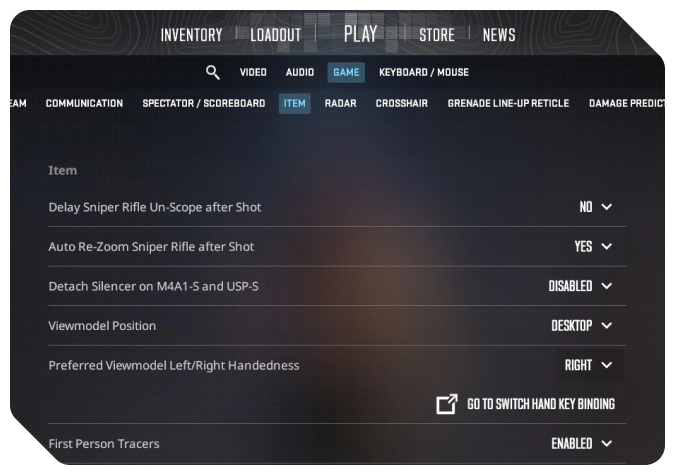
- Head to the Game tab and navigate to the Item section.
- Choose one of the two available options for the Viewmodel Position:
- Desktop for a slightly higher position in the lower right corner;
- Classic to put the gun slightly down in the same corner.
- Select your preferred hand in the next CS2 viewmodel settings option: Right or Left.
If you are decently notorious about the convenience of the on-screen elements, don’t hesitate to check out our guide on the radar settings in Counter-Strike.
CS2 Console Commands to Change the Viewmodel Settings
In the vast selection of CS2 console commands, we have five directly connected to the viewmodel settings.
- Launch Counter-Strike 2 and press the tilde key, ~, to open the developer console. Make sure it’s enabled in the game settings menu.
- You can use the command viewmodel_presetpos [1/2/3] for three presets. It’s Desktop (1) and Classic (3), like in the game settings menu. The value 2 activates the Coach viewmodel, for a wider view.
- Use the command viewmodel_fov to change the field of view for the weapon model. The possible values are from 54 to 68. With the highest value, the gun moves away from the screen center and appears to be smaller. The default value is 60.
- Use the commands viewmodel_offset_x, viewmodel_offset_y, and viewmodel_offset_z to set the exact position of the CS2 weapon and character hands in the horizontal (x), vertical (y), and depth (z) dimensions. The possible values are from -2.5 to 2.5 for x and from -2 to 2 for y and z.
The Best Viewmodel Settings in CS2
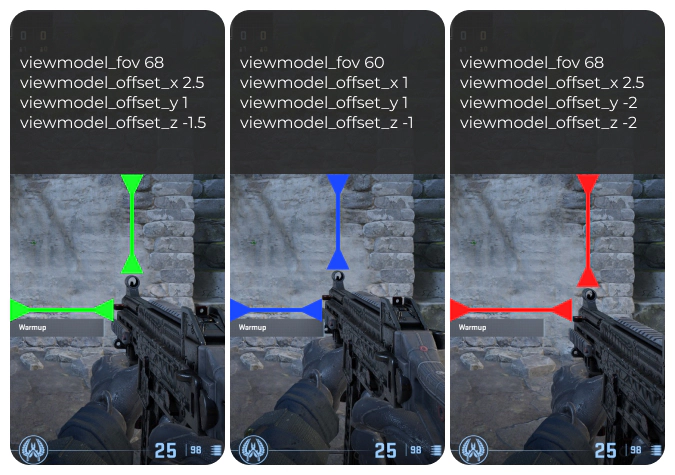
We can highlight universally the best settings for CS2 viewmodel and some options for specific playstyles.
Universally Best
The following viewmodel settings are considered the best for most players in all CS2 modes. You can try and play with them for a while and then decide if you need additional adjustments.
- viewmodel_fov 68: The smallest weapon, the widest view.
- viewmodel_offset_x 2.5: The farthest right position of the gun.
- viewmodel_offset_y 1: The weapon is slightly up, but not to the max.
- viewmodel_offset_z -1.5: Almost the full distance away from the screen.
Aggressive Playstyle
The weapon is slightly more centered with these viewmodel settings, and it feels better with an aggressive playstyle in Counter-Strike
- viewmodel_fov 60
- viewmodel_offset_x 1
- viewmodel_offset_y 1
- viewmodel_offset_z -1
Max Visibility
The following settings minimize the weapon model and push it away from the screen for the most visibility. These are better options for a more immersive experience.
- viewmodel_fov 68
- viewmodel_offset_x 2.5
- viewmodel_offset_y -2
- viewmodel_offset_z -2
If you aim for technical perfection in CS2, you may need to optimize the interp settings. In a dedicated guide, we explain how.
Pros and Cons of Different Settings
Let’s summarize the pros and cons of different CS2 viewmodel settings.
| Viewmodel Settings | Pros | Cons |
|---|---|---|
| Desktop (default) | A solid, all-around option, good for beginners to get yourself familiar with the game. | It doesn’t emphasize your strongest sides as a player. It feels more clunky and uses more space on the screen. |
| Couch | A wider view of the virtual world. A better view of the gun and skins. | It creates a too casual atmosphere in the game. The weapon is too big for competitive purposes. |
| Classic | If you’ve played older games, this one may feel more familiar. | The modern competitive settings are better optimized for fast-paced matches with high requirements for precision. |
| Universally Best | Very good for both competitive and casual players. | It is possible to go deeper into the competitive dimension than these settings. |
| Aggressive Playstyle | The more centered position of this viewmodel type supports the rushdown playstyle. It looks better for some players. | The view is somewhat covered, and when you need to observe the surroundings calmly, this viewmodel may become a slight disadvantage. |
| Max Visibility | Competitively-oriented, for max effectiveness in the game. | Many players need time to adjust their personal habits to this viewmodel type. It feels somewhat unnatural in the beginning. |
Pro Players’ Viewmodel Settings
In this section, you’ll find the viewmodel settings of pro players. They play in the biggest CS2 esports tournaments, so their viewmodel choice can be a good basis for your in-game success.
ZywOo
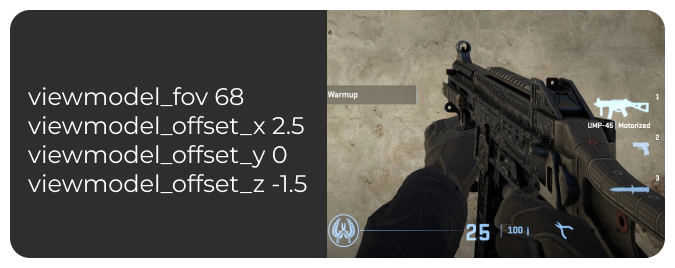
- viewmodel_fov 68
- viewmodel_offset_x 2.5
- viewmodel_offset_y 0
- viewmodel_offset_z -1.5
torzsi
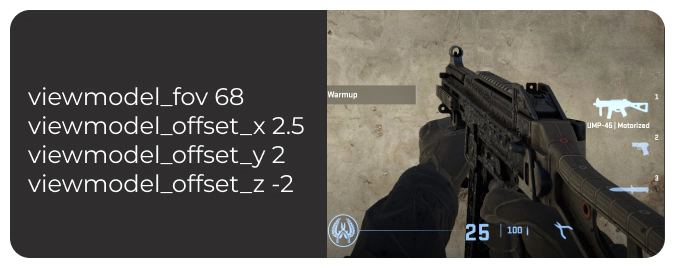
- viewmodel_fov 68
- viewmodel_offset_x 2.5
- viewmodel_offset_y 2
- viewmodel_offset_z -2
NiKo
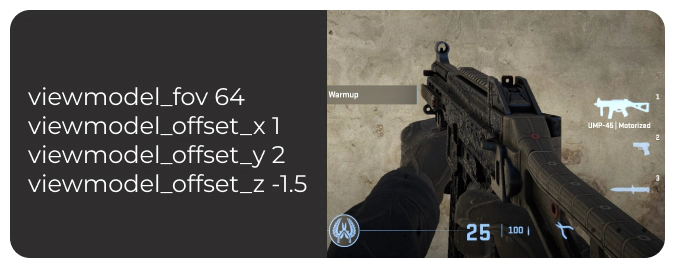
- viewmodel_fov 64
- viewmodel_offset_x 1
- viewmodel_offset_y 2
- viewmodel_offset_z -1.5
karrigan
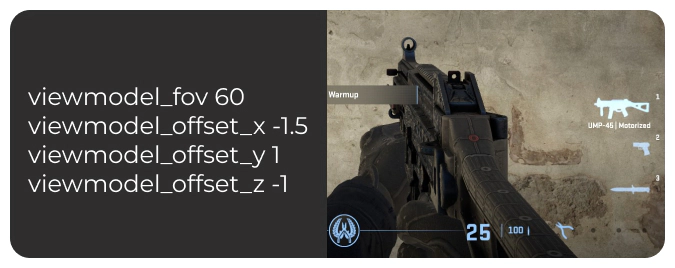
- viewmodel_fov 60
- viewmodel_offset_x -1.5
- viewmodel_offset_y 1
- viewmodel_offset_z -1
dev1ce
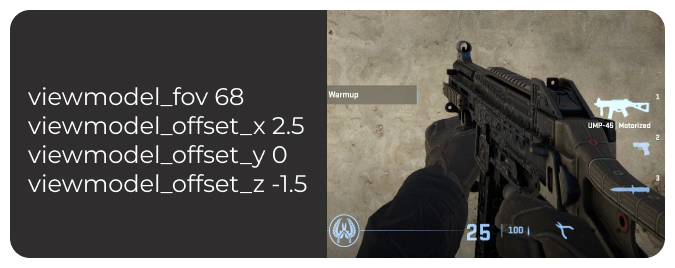
- viewmodel_fov 68
- viewmodel_offset_x 2.5
- viewmodel_offset_y 0
- viewmodel_offset_z -1.5
Tips for Customizing Your Own Settings
We’ve collected a few practical tips for finding your personally best viewmodel settings in CS2.
📌 Use the default or universally best in the beginning. However important the viewmodel is in Counter-Strike, beginners to the game should focus on other aspects. Define your playing style first to feel what to adjust for a nice boost in your results.
📌 Visibility first. This part of the game settings is mainly about opening the best view for you. Prioritize seeing the maps and your opponents, as it may be more important than the stunning appearance of your CS2 skins.
📌 Test your new viewmodel in real matches. Before deciding whether you like a viewmodel type or not, give it a go in a proper Counter-Strike battle. It may happen that a new and potentially better viewmodel type feels slightly weird, just because you used another one.
📌 Focus on esports pros. Those guys know a thing or two about competitive Counter-Strike. You can take notes from them! Still, don’t think their settings are universal. They are the best for dedicated competition but may not be in tune with your style and preferences.
📌 Be consistent. There is no need to experiment when you’ve found something really good for you. Stick to these settings and adjust them only if your new experience says so.
📌 Feel your comfort. At the end of the day, you need to feel comfortable with your CS2 viewmodel settings. Practice a lot, and focus on your feelings.
Conclusion
The CS2 viewmodel settings adjust the position of the in-game weapon on the screen. Even slight changes in the viewmodel can significantly affect your general feelings in the game and your effectiveness as a player.
The default settings are good for beginners, but serious players should adjust them. The community has distinguished the universally best values for the viewmodel commands. You can use them or go for competition-focused options.
Many pro players prefer the best view and the smallest weapon. Still, even esports professionals have a variety of preferences. You should focus on your personal comfort in the game and your playing style to find your best viewmodel settings.
FAQ
What is the default viewmodel FOV in CS2?
Counter-Strike 2 has the default viewmodel FOV set to 60. In the console command, it’s viewmodel_fov 60.
Do the viewmodel settings affect FPS in CS2?
No, the viewmodel setting has no significant effect on FPS. The Frames Per Second parameter depends mainly on your hardware. We have a dedicated guide on how to increase FPS in CS2, so check it out for more info.
How do I reset my viewmodel to default in CS2?
You can use the console command viewmodel_presetpos 1 to restore the default viewmodel settings in CS2. This command corresponds to the Desktop preset in the game settings menu.
Trade on the go - install the mobile app of DMarket from Google Play or App Store. Never miss great prices and unique skins. The best CS2, Dota 2, Rust and TF2 marketplace is always at hand!


For more Counter-Strike 2 guides and CS2 skins info, stay tuned to DMarket Blog. For example, we have an article that explains the Trade Protection feature and how it affects skins trading in CS2.