


How to Change Steam Profile Name: Explained
Your profile name on Steam is visible to teammates and opponents in various multiplayer games, including Counter-Strike 2, Dota 2, Team Fortress 2, Rust, and others. It’s the nickname people see during chat communications. In a way, this name identifies your gaming personality and lets others know “oh, it’s that guy I played with earlier.”
The reasons for changing your Steam profile name can be very different. Someone created it years ago, and that name sounded cool back then—but now, it’s just embarrassing. Others want to soft-erase their play history: for example, their skills in CS2 or Dota 2 are much better now, and there is no need to evoke memories of early noob mistakes.
It is super easy to change your visible name on Steam. Some confusion may come from an unchangeable Steam account name, which is used to sign in to the system.
In this article on DMarket Blog, we explain how to change your Steam profile name and highlight how it differs from your account name and real name on the platform.
Profile Name vs Account Name on Steam: The difference
Steam has two types of names for its users.
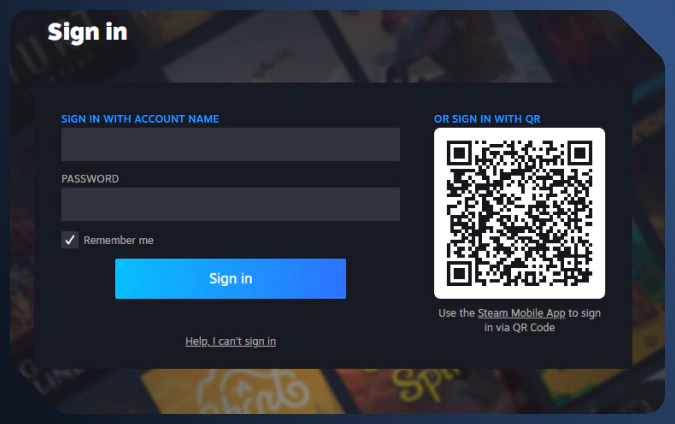
- Account name is used to log in to the platform. It is tightly connected to your account and cannot be changed. No one sees it in games or during communication on Steam.
- Profile name is the nickname visible to other players in games and during communication. It can be changed easily to refresh your aura in multiplayer and even to cover your previous presence in matchmaking.

In a nutshell, you should not worry about your Steam account name too much. It’s a login ID, visible only to you. Just try not to forget it, but even if this happens, Steam has a way to recover the account name and your password via email. Check out our security recommendations for Steam to know how to handle your sensitive information on this platform properly.
On the other hand, the Steam profile name is open for everyone in your multiplayer experience. It’s a nickname by which you are recognisable in the gaming community. Steam allows any user to change their profile names with no problems at all.
How to Change Your Steam Profile Name
You can change your Steam profile name on a computer or mobile device.
On PC
- Launch the Steam app or log in to Steam via the web.
- Click your current profile name in the upper menu.
- If you are using the web version, you may need to enter your credentials once again: account name (login) and password.
- On your profile page, click the Edit Profile button in the right column.
- In the General section, change your profile name.
- Scroll to the bottom and press the Save button.
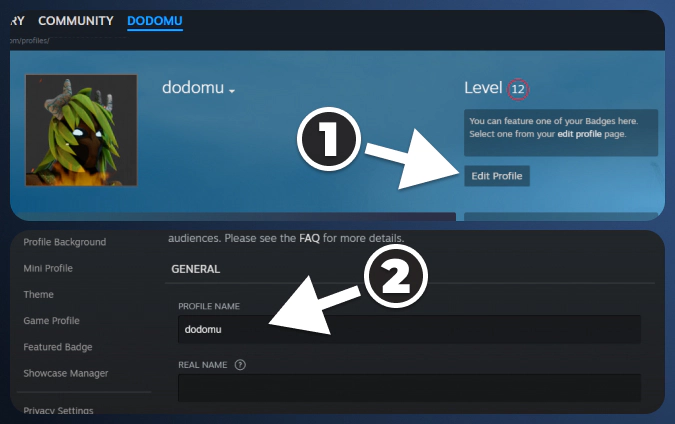
Note that Steam has specific restrictions for profile names, so something rude and inappropriate will be blocked.
On Mobile
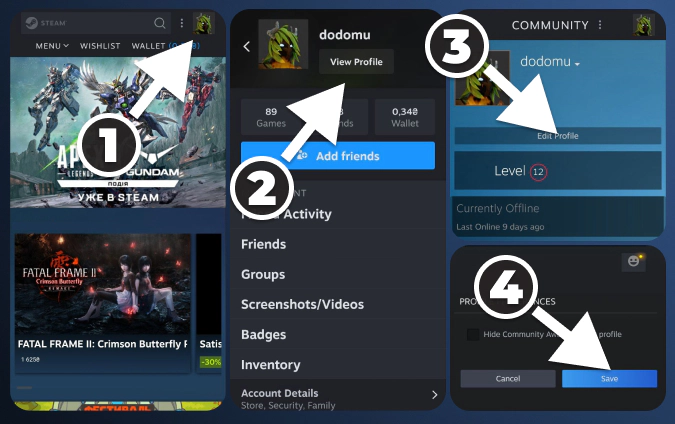
- Launch the Steam app.
- Tap your Avatar icon to open your profile.
- Proceed to the edit section via Edit Profile.
- Change your Steam profile name.
- Tap the Save button.
Can I Change My Account Name on Steam?
No, you can’t change your Steam account name. It is your login to the platform, and your entire library and game progression is linked to it.
The only way is to sign up with a different account name. It will be a new profile, so you will need to start over with it: purchase your games, and progress from scratch.
There are practically no reasons to change your Steam account name, as it’s not visible to others. However, creating a new account can be useful if you don’t want your Steam friends to see you playing a specific game. You can share your library with others on the same PC, create a new account, and then dive into that guilty pleasure. Making some games private is easier, and this hides your activity.
What’s the Role of Real Name on Steam?
You may notice the Real Name section on your Steam profile. You can add anything there, as the role of this info is to let other people find you on Steam.
- The real name is visible to others if they visit your Steam profile. It is hidden in games.
- It’s not necessary to use an actual real name, as the purpose of this info is limited to being recognised in the Steam community—only if you want that.
- You can keep this section empty.
Common Issues
Changing your Steam profile name is a pretty straightforward process. The only common issue is an attempt to use something prohibited by the platform’s rules.
- If Steam blocks your new profile name, just try something different. Even if you don’t see an issue, it can be hidden in obscure slang.
Also, there is a limit on the number of symbols.
- You can use only up to 32 symbols in your Steam profile name.
Your profile name on Steam is visible in multiplayer games and on the platform. You can change it via the Edit Profile section in the PC and mobile apps or in the web version of Steam. Use generally appropriate names and terms, or the system will not allow you to proceed with these changes.
Your Steam account name is different. It’s your unique username or login within the system. You cannot change it.
Trade on the go - install the mobile app of DMarket from Google Play or App Store. Never miss great prices and unique skins. The best CS2, Dota 2, Rust and TF2 marketplace is always at hand!


For everything helpful, stay tuned to DMarket Blog and follow us on Facebook and Twitter.